Every growing Indian business eventually reaches a moment when adding a new team member feels more complicated than it should be. Someone joins the company, the IT person is unavailable, and suddenly, no one quite knows how to get the new hire access to their work email and tools. A reliable Microsoft 365 partner helps eliminate this friction by streamlining onboarding and ensuring quick, secure access from day one.
For many growing organisations, working with the right support partner becomes essential at this stage. A structured onboarding approach ensures that every new employee gets the right access from day one, licenses are assigned correctly, and security settings are not overlooked. Without this, businesses often face issues like unused licenses, inconsistent access, and avoidable billing overhead.
What Does “Adding a User” Actually Mean in Microsoft 365?
Before jumping into the steps, it helps to understand what happens behind the scenes when a new user is added to Microsoft 365.
When a user account is created, Microsoft generates a unique identity in Azure Active Directory (now called Microsoft Entra ID). This identity is what allows the person to sign in across all Microsoft services — Outlook, Teams, SharePoint, OneDrive, and more. Without a license attached to that identity, the account exists, but the person cannot use any of the paid applications.
Think of it this way: the user account is the door, and the license is the key. Creating the account without assigning a license means the door exists, but no one can walk through it.
In the Indian context, this also has a cost implication. Licenses are billed monthly or annually, and every unassigned or incorrectly assigned license adds to the subscription cost without delivering any value. This is why understanding user management and license assignment together — as a single connected workflow — matters so much for businesses monitoring their monthly spend.
Understanding Microsoft 365 Plans Business — Which One Are You On?
Before adding a user, it is worth confirming which plan the organisation is running. The license you assign to a new user depends entirely on what is available in the current subscription pool. This is especially important when managing Microsoft 365 small business plans, as each plan offers different features, limits, and licensing options.
Microsoft 365 plans for businesses fall into four main tiers for organisations with fewer than 300 users:
Microsoft 365 Business Basic:
The entry-level plan covers web and mobile versions of Office apps, Teams, Exchange email (50 GB mailbox), OneDrive (1 TB), and SharePoint. It does not include desktop versions of Word, Excel, or PowerPoint. This plan works well for teams whose work is browser-based or primarily communication-driven.
Microsoft 365 Business Standard:
Adds full desktop installations of all Office applications (up to 5 PCs/Macs per user), plus Teams webinars, customer bookings, and more advanced collaboration features. This is the most commonly adopted plan for Indian SMBs that need the full Office suite.
Microsoft 365 Business Premium:
Includes everything in Standard, plus enterprise-grade security features: Intune device management, Azure AD Premium P1, Microsoft Defender for Business, and Azure Information Protection. For any business handling sensitive client data or regulated industries, this is the plan that provides genuine protection.
Microsoft 365 Apps for Business:
Desktop Office apps and OneDrive only — no Teams, no Exchange. Suited for businesses that already have email infrastructure elsewhere and only need the productivity applications.
Understanding which plan is active directly affects what you can offer each new user. If someone needs Teams but the organisation is on Apps for Business, the license simply will not provide that access.
How to Check Your Current License Inventory Before Adding Anyone
A step that many admins skip — and later regret — is checking how many licenses are available before beginning the user creation process.
Here is how to do it:
- Sign in to admin.microsoft.com using Global Admin or Billing Admin credentials.
- In the left navigation panel, go to Billing → Licenses.
- The screen displays every subscription the organisation holds, the total number of licenses purchased, and how many are currently assigned.
- If available licenses show zero, a new license must be purchased before the user creation process can complete successfully.
For businesses in India purchasing through a Microsoft 365 partner (a Cloud Solution Provider or CSP), this is the moment to contact them if additional licenses are needed. CSP partners can add seats quickly, often within the same billing cycle, and provide GST-compliant invoices in INR, which matters significantly for input tax credit claims.
Step-by-Step — Adding a Single User in Microsoft 365
This is the core of this guide. Every step below is based on the current Microsoft 365 Admin Centre interface.
Step 1: Sign In to the Admin Centre
Navigate to admin.microsoft.com and sign in with Global Admin or User Management Admin credentials. Only accounts with these roles can add users.
Step 2: Go to Users → Active Users
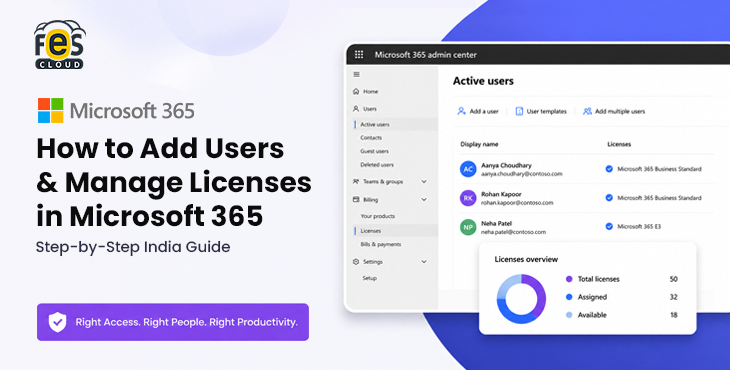
From the left navigation menu, click Users, then Active Users. This screen shows every licensed and unlicensed account currently in the tenant. The Add a user button appears in the top action bar.
Step 3: Enter Basic Information
The setup wizard opens. Fill in:
- First name and Last name: use the person’s full legal name as it will appear in the global address book.
- Display name: this is what appears in Teams, email threads, and calendar invites. For Indian names, be consistent with the naming convention already used across the organisation.
- Username: this forms the work email address (e.g., priya.sharma@yourcompany.com). Choose a format and stick to it across the team.
Step 4: Set the Password
Two options are available:
- Auto-generate a password (recommended for security): Microsoft creates a complex password that can be emailed to the new user or copied by the admin.
- Create a password manually: useful when following internal password policy standards.
Enable the option “Require this user to change their password at first sign-in.” This is a basic but important security control, especially relevant given CERT-In’s advisory requiring MFA and credential hygiene for Indian organisations.
Step 5: Assign a Product License
This is where the user gains actual access to Microsoft 365 tools.
- Select the location (India — this is important for compliance and data residency settings).
- Choose a license from the available pool. The plan shown here reflects the subscriptions your organisation holds.
- Optionally, toggle individual apps within the license on or off. For example, if the organisation does not use Yammer or Sway, those can be disabled per user without affecting the rest of the plan.
- If no licenses are available, a prompt will appear to purchase more.
Step 6: Set Optional Profile Information
This step is optional but recommended for teams of over 15–20 people:
- Job title, department, office location, phone number
- Manager assignment (used by Teams and Outlook’s org chart view)
- For Indian enterprises with multiple city offices, accurate department and office fields help with internal directory searches.
Step 7: Set Admin Roles (If Needed)
Most new users should remain as “User (no admin access)” — the default setting. Only assign admin roles when the person genuinely needs them. Giving out Global Admin access too freely is one of the most common security mistakes Indian businesses make.
If limited admin rights are needed (e.g., helpdesk access), Microsoft provides granular roles such as User Management Admin or Helpdesk Admin that provide the necessary access without full control.
Step 8: Review and Finish
A summary screen shows everything entered. Review carefully — username and domain cannot be changed easily later. Click Finish adding, and the account is live within a few minutes.
Microsoft sends a welcome email to the new user’s personal email address (if entered) with sign-in instructions. The admin also receives a confirmation.
Adding Multiple Users in Bulk — The Right Way for Growing Teams
For businesses onboarding a batch of new hires — common in India’s IT services, BPO, and manufacturing sectors during expansion phases — adding users one at a time becomes impractical. Microsoft 365 provides two methods for bulk addition, making it easier to manage users efficiently under Microsoft 365 plans, ensuring faster deployment and consistent access setup.
Method 1: CSV Upload
This is the most straightforward bulk method and requires no technical background.
- From Active Users, click the drop-down arrow next to Add a user and select Add multiple users.
- Download Microsoft’s CSV template from the same screen.
- Fill in the required columns: Username, Display name, First name, Last name, Job title, Department, Office phone, Office, City, State, Country, and License.
- For Indian entries: use IN as the country code, and format phone numbers with the +91 country code in the office phone field.
- Upload the completed CSV and review the validation screen. Microsoft flags errors row by row — common issues include duplicate usernames or incorrectly formatted email addresses.
- Confirm the upload. Accounts are created, and licenses are assigned as specified in the CSV.
One important note: the license column in the CSV uses Microsoft’s internal product codes (e.g., SPB for Microsoft 365 Business Premium). These codes are available in Microsoft’s licensing documentation and should be confirmed before the upload.
Ready to Set Up Microsoft 365 Without the Hassle?
FES Cloud handles user setup, license management, and onboarding for Indian businesses — fast, compliant, and stress-free.
How to Assign a License to an Existing Unlicensed User
Sometimes a user account already exists in the system — perhaps created during a previous setup — but no license was assigned. This is more common than most admins realise, particularly in organisations that have grown quickly.
Here is how to assign a license after the fact:
- Go to Active Users and search for the user by name or email.
- Click on the user’s name to open their profile panel.
- Select the Licenses and apps tab.
- Check the box next to the appropriate license plan.
- Expand the Apps section underneath to enable or disable specific applications within that license.
- Click Save changes.
The user gains access within a few minutes. No restart or reinstall is required on their end — they simply sign in to Microsoft 365, and their apps become available.
How Microsoft 365 Pricing for Business Works in India
Microsoft 365 pricing in India is based on a per-user, per-month model, with GST applied as per regulations.
Plans with Microsoft Teams
| Plan | Price (INR/user/month, excl. GST) |
|---|---|
| Microsoft 365 Business Basic | ₹145 |
| Microsoft 365 Business Standard | ₹770 |
| Microsoft 365 Business Premium | ₹1,830 |
| Microsoft 365 Apps for Business | ₹685 |
Plans without Microsoft Teams
If your organisation already uses Zoom, Google Meet, or another video conferencing platform and does not need Teams bundled in, FES Cloud also offers the same plans at reduced prices:
| Plan | Price (INR/user/month, excl. GST) |
|---|---|
| Microsoft 365 Business Basic (no Teams) | ₹105 |
| Microsoft 365 Business Standard (no Teams) | ₹570 |
| Microsoft 365 Business Premium (no Teams) | ₹1,565 |
For a detailed breakdown of what each plan includes, refer to our Microsoft 365 Business plan comparison guide.
Monthly vs Annual Billing: Annual commitment plans are priced lower per month but require payment for the full year upfront or in structured monthly instalments. For Indian businesses with predictable headcount, annual plans reduce per-seat cost meaningfully. For organisations with high staff turnover or seasonal hiring, monthly flexibility may justify the slightly higher cost.
GST Considerations: 18% GST applies to all Microsoft 365 purchases in India. Businesses registered under GST can claim Input Tax Credit (ITC) on these purchases — but this requires a proper tax invoice from a GST-registered seller. This is one key reason many Indian businesses prefer purchasing through a local CSP rather than directly from Microsoft’s global portal. For a complete breakdown of both purchasing routes and what changes with each, the Microsoft 365 CSP vs Direct buying guide for India explains exactly how GST compliance, invoice format, and support access differ — and why it matters for Indian businesses specifically.
How to Remove a License and What Happens Next
Removing a license is just as important as assigning one — and it is often overlooked when employees exit the organisation.
Why it matters financially: An unrevoked license for an ex-employee continues to consume a paid seat. In a 50-person company with even 5 forgotten ex-employee accounts, that is a meaningful monthly cost with zero return.
Steps to remove a license:
- Go to Active Users and select the departing employee’s account.
- Open the Licenses and apps tab.
- Uncheck the license assigned to them.
- Click Save changes.
What the user loses — and when:
- Access to Microsoft 365 applications is revoked immediately.
- The user’s email continues to receive messages for 30 days (the account still exists, just unlicensed).
- Their OneDrive files are retained for 30 days by default before deletion — this can be extended to 180 days in the Admin Centre settings.
What to do with the freed license: After removal, the license returns to the available pool and can be assigned to a new user immediately. No extra purchase is needed.
Best practice for Indian organisations: When an employee exits, follow this sequence — remove the license, block sign-in (under Active Users → Block sign-in), forward their email to their manager, then delete the account after 30 days, once the data has been reviewed and archived.
Transferring a License Between Users
Microsoft 365 does not have a one-click “transfer license” option. The correct process is a two-step operation:
- Remove the license from User A (the person leaving or changing roles).
- Assign that same license to User B (the incoming user or replacement).
Both steps can be completed within minutes and take effect immediately. There is no waiting period between removing and reassigning.
This process is commonly needed in Indian businesses during role changes, promotions, or departmental restructuring — situations where one person’s responsibilities shift to another.
Admin Roles — Who Should Have Access to Do All This?
Roles control user and license management in Microsoft 365. Not every admin needs full Global Admin access — in fact, giving too many people Global Admin rights is a well-documented security risk.
Here are the most relevant roles for user and license management:
Global Administrator: Full access to everything. Reserve this for 2–3 trusted individuals maximum.
User Administrator: Can create and manage users, reset passwords, and assign licenses (except to other Global Admins). This is the appropriate role for HR or IT coordinators handling day-to-day onboarding.
License Administrator: Can assign and remove licenses only. Useful for finance or procurement teams that need to manage subscription costs without touching other settings.
Helpdesk Administrator: Can reset passwords and manage basic user settings. Appropriate for frontline IT support staff.
Assigning the right role to the right person reduces security exposure and makes the Admin Centre easier to manage — fewer people with access means fewer accidental changes and a cleaner audit trail.
License Audit — How to Find and Fix License Wastage
Many Indian businesses are paying for licenses that are assigned but barely used. A periodic license audit is one of the most practical cost-management steps available.
How to run a basic audit:
- Go to Reports → Usage in the Admin Centre.
- Review the Microsoft 365 Apps usage report and the Active users report.
- Look for accounts with zero or minimal activity over the past 30 days.
- Cross-reference with HR records — are these current employees?
- For inactive accounts, investigate before removing: some employees may be on leave, others may have left without their accounts being deactivated.
What to look for:
- Accounts with licenses assigned but no sign-in activity in 60+ days
- Shared service accounts with full premium licenses (may only need a lower-tier plan)
- Duplicate accounts created during onboarding errors
Reallocating even 10% of unused licenses in a 100-seat organisation can meaningfully reduce annual Microsoft 365 spend.
Why Working With a Microsoft 365 Partner Makes a Difference
A certified Microsoft 365 partner in India (Cloud Solution Provider) brings technical expertise, structured onboarding processes, and ongoing support that most internal teams lack.
This is especially relevant for Microsoft 365 small business plans, where the IT infrastructure is lean, and the business owner or office manager is often doubling as the de facto admin. Having an experienced partner handle the technical layer allows the team to focus on the actual work.
As we covered in our guide to Microsoft 365 for Indian startups, structured onboarding through a CSP partner creates a meaningful productivity advantage from day one, particularly for teams scaling from 5 to 50 users rapidly. The key insight from that experience is that startups that set up their user management workflow correctly early on avoid license sprawl and access control issues that tend to slow teams down once they cross the 30–50-person mark.
Common Mistakes Indian Businesses Make With License Management
A few patterns come up repeatedly in how Indian businesses handle Microsoft 365 administration:
-
Giving everyone Global Admin access:
This is the most common error. It stems from a culture of convenience — easier to give full access than to figure out the right role. The result is a security risk that most organisations do not realise until something goes wrong.
-
Not removing licenses when employees leave:
Exit processes in many Indian companies focus on equipment return and access card return, but digital offboarding — removing Microsoft 365 licenses and blocking sign-in — is often overlooked. This creates both security exposure and unnecessary cost.
-
Buying licenses on Microsoft Direct without GST-compliant invoices:
The resulting inability to claim ITC quietly inflates the effective cost of the subscription by 18%.
-
Assigning premium plans to users who only need basic access:
A warehouse supervisor who only uses email does not need a Business Premium license. Matching the plan to the actual use case can halve the per-seat cost for a portion of the team.
-
Never auditing usage reports:
Microsoft 365 Admin Centre provides detailed usage analytics at no extra cost. Most organisations never look at them. Running even a quarterly review would surface actionable savings.
Quick Reference — Key Admin Centre Paths
For admins who want a quick reference without navigating through the full wizard each time:
| Task | Admin Centre Path |
|---|---|
| Add a new user | Users → Active Users → Add a user |
| Assign a license | Users → Active Users → [User] → Licenses and apps |
| Remove a license | Users → Active Users → [User] → Licenses and apps |
| Buy more Licenses | Billing → Purchase services |
| View license inventory | Billing → Licenses |
| Block a user’s sign-in | Users → Active Users → [User] → Block sign-in |
| View usage reports | Reports → Usage |
| Manage admin roles | Users → Active Users → [User] → Roles |
Conclusion
Managing users and licenses in Microsoft 365 is not a complex task — it is a repeatable process that becomes second nature after a few cycles. The key is knowing the right sequence: check available licenses before adding users, assign the correct plan for each person’s actual role, remove licenses promptly when people leave, and audit regularly to avoid unnecessary spend.
For Indian businesses, the added layer of GST compliance, INR billing, and local support makes the purchasing channel just as important as the subscription itself. Working through Microsoft 365 pricing for business with a certified CSP partner ensures that every rupee spent on licenses is accounted for, claimable, and delivers actual value to the team.
Whether the organisation has 5 users or 500, the principles covered in this guide apply equally. Start with a clean user list, assign licenses intentionally, and build a simple monthly review habit — that alone will put the organisation ahead of most peers in how efficiently it runs its Microsoft 365 environment.
Businesses that follow a structured approach — or work with experienced professionals — avoid common mistakes and get significantly more value from their Microsoft 365 investment over time.
Simplify Microsoft 365 Management Today
Let FES Cloud handle the technical side — user setup, licenses, and ongoing support — so you can focus on growing your business.